Optimize your agents with FAPO and the Explorer UI
We recently released FAPO (Fully Automated Prompt Optimization), an automated tool driven by Claude Code or Codex to optimize LLM pipelines from baseline prompts to production-ready accuracy. Based on each tenant, FAPO evaluates, attributes failures, proposes variants, and iterates until your application hits its target accuracy. See our previous post for the full introduction.
FAPO also comes with the FAPO Explorer UI, a visual layer that brings tenant data to life during optimization. Instead of digging through files, you can now watch accuracy climb, inspect individual failures, and see how each prompt variant performs, all in one place.
In this blog, we'll walk through creating a tenant on FAPO, kicking off an optimization run, and using the FAPO Explorer UI to observe and visualize your project as it improves.
Getting Started with FAPO
FAPO requires Python 3.10 or higher. To get started, clone the repository, set up a virtual environment, and export your provider credentials before launching Claude Code or Codex:
git clone https://github.com/cisco-foundation-ai/fully-automated-prompt-optimization
cd fully-automated-prompt-optimization
python3 -m venv .venv && source .venv/bin/activate
python3 -m pip install -e .
export OPENAI_API_KEY=sk-...
claude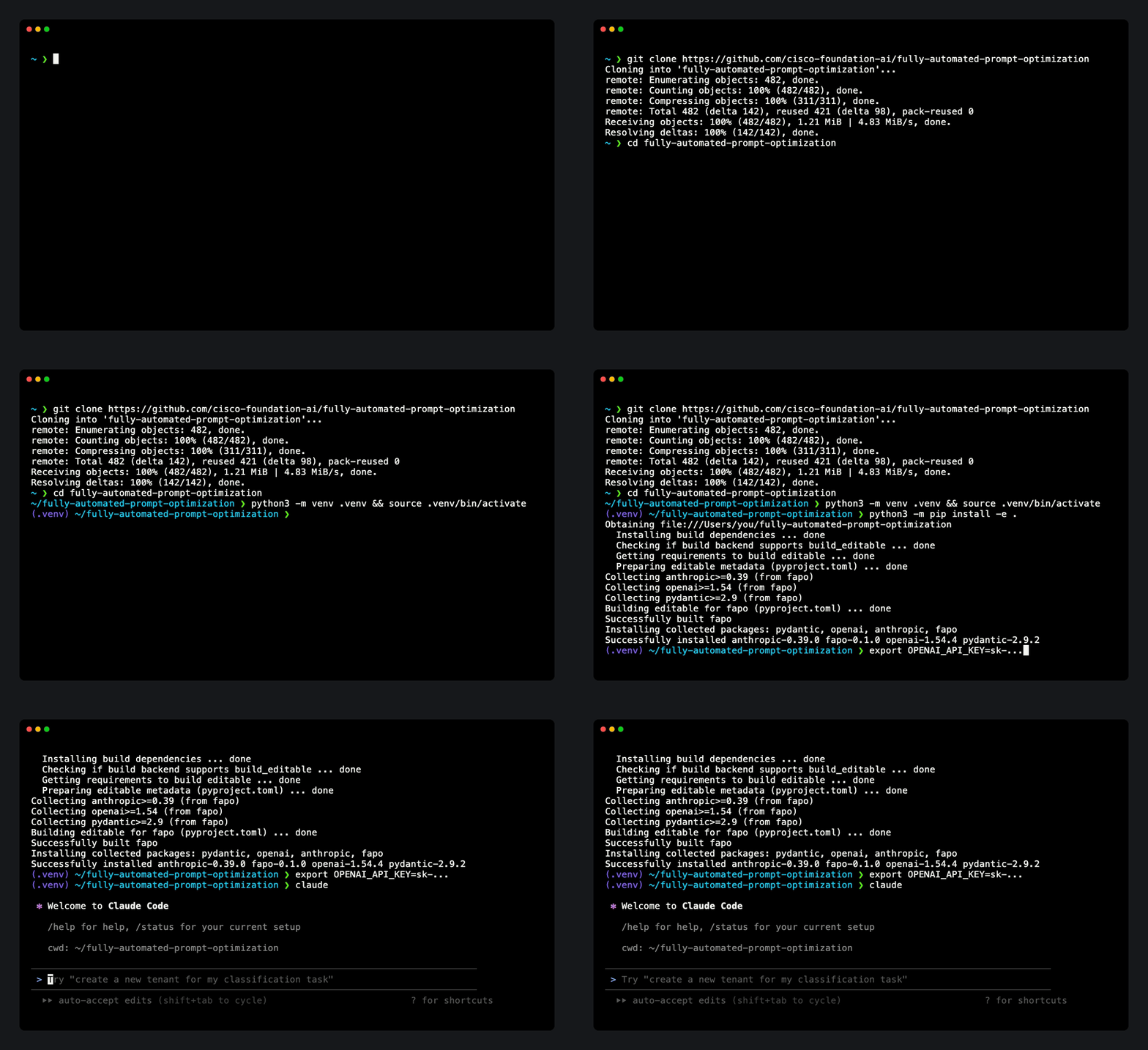
FAPO supports OpenAI, Baseten, and SageMaker as LLM providers for the models being evaluated, so export the credentials for whichever provider your tenant uses.
Once the environment is ready and Claude Code or Codex is running, you can move on to create a new tenant.
During evaluation, if FAPO appears stuck on the first case for a long time, it's likely an LLM provider connectivity issue, such as being blocked by a certificate or similar. As a hotfix for OpenAI, first upgrade the relevant packages:
python3 -m pip install --upgrade openai httpx certifi truststoreThen open src/hephaestus/providers/openai.py and add the following after line 49:
try:
    import truststore
    truststore.inject_into_ssl()
except ImportError:
    pass
Prompting FAPO to Create a Custom Tenant
In FAPO, a tenant is a self-contained optimization project: a single directory holding everything specific to one task. A tenant contains its prompts, the dataset used for evaluation, the chain definition (the steps of the pipeline), the scorer that grades each output, and the configuration that ties it all together. Tenants are isolated from one another, so you can optimize many unrelated tasks side by side without interference.
Building a tenant from scratch can be a lot to wire up. To make this easier, we packaged FAPO with a rich set of examples and documentation that Claude / Codex can draw on. This means you can simply describe your task in natural language, and FAPO will generate a complete tenant for you, scaffolding the prompts, chain, scorer, and configuration to match what you described.
FAPO can even synthesize a dataset from a handful of sample records when you don't have one ready. We always encourage bringing your own training data, since it best reflects your real workload, but in practice an accessible, labeled dataset isn't always available. In those cases, FAPO can bootstrap a representative dataset from a few examples so you can start optimizing right away.
As an example, let's create a tenant called splunk_agent to evaluate a workflow connected to a Splunk MCP server. We can describe everything we want directly to FAPO:
Create a new tenant called splunk_agent to evaluate a workflow connected to a real Splunk MCP server using bearer token.
Documentation of Splunk MCP Server can be found here: https://help.splunk.com/en/splunk-cloud-platform/mcp-server-for-splunk-platform/1.2/about-mcp-server-for-splunk-platform
For scoring, use both trajectory scoring and LLM-as-judge scoring with weights of 0.9 and 0.1, respectively.
Evaluate gpt-4o model and use gpt-5.5 as an LLM judge.
Optimization scope is both prompt and parameters.
The use case is Splunk operation. Create 20 data entries based on the following examples. Format the dataset accordingly to the fields used by the scorers.
Examples of desired cases:
Example 1
Input: What are most of my data stored in Splunk
Tool Trajectory: splunk_get_indexes --> splunk_get_index_info(index_name)
Answer: The list of indexes are ... 80% of data is stored in indexes ... containing ...
Example 2
Input: Who are the admin users. Give me their details
Tool Trajectory: splunk_get_user_list
Answer: The admin users are...
Example 3
Input: Has there been any indexing failures or skipped searches in the last 5 hours?
Tool Trajectory: saia_generate_spl(query) --> splunk_run_query(spl_query)
Answer: ## Indexing Failures: .... ## Skipped Searches: ....
From here, work interactively with Claude or Codex to settle the details: whether to optimize against a live MCP server or spin up a local sandbox, and whether to provide credentials for connectivity testing.
Checking the Tenant Files in the FAPO Explorer UI
The tenant files are created under the FAPO repo. To better visualize the tenant's contents and track the optimization progress, we can use the FAPO Explorer UI. Simply ask Claude or Codex to start the FAPO Explorer UI, and it will spin up the interface on your local host at http://127.0.0.1:8765/.
The UI opens on the Overview page, where all of your tenants and their run results are listed. From here you get a high-level summary across every tenant: eval runs, iterations, prompt templates, and datasets. Use the dropdown menu to filter down to the tenants you care about, or click a tenant name in the left menu to jump into that specific tenant's space.
Let's click into the splunk_agent tenant we just created. Each tenant space contains six tabs: Runs (Evaluation Results), Datasets, Iterations, Prompt, Config, and Docs. At first, there are no evaluation results yet, since we haven't started the optimization. We can view the synthesized dataset, with fields such as the tool trajectories and the expected answer. No iterations are logged yet either. We have a single prompt template serving as the baseline, along with a configuration file. Finally, the Docs tab contains all of the tenant-related documentation, including the change log, the data contract, and the iteration playbook, which guide FAPO on how to optimize.
Optimizing the Tenant and Visualizing the Results
With the tenant in place, we can kick off the optimization. Rather than configuring a run by hand, we simply give Claude or Codex a clear target and let FAPO drive the loop:
Optimize tenant splunk_agent until composite score reaches 98FAPO takes it from there. It runs the current prompt against the dataset, scores every case, attributes the failures, proposes improved prompt and parameter variants, and re-evaluates, iterating until the composite score crosses your target or improvements plateau. The whole loop is autonomous, but it isn't a black box: you can watch it unfold in real time on the FAPO Explorer UI, where each new run, variant, and score lands as it happens.
The Runs view shows each inference evaluation results. In the run-001 baseline evaluation, the agent struggled to follow the correct tool-call trajectory, picking the wrong tools or calling them in the wrong order, which dragged down the trajectory score even when the final answer looked reasonable. By run-006, the agent produced near-perfect outputs on both dimensions: it consistently selected the right Splunk tools in the right sequence (trajectory scoring) and returned answers that matched the expected responses (LLM-as-judge scoring).
To understand how FAPO got there, switch to the Iterations tab. Each iteration records what changed between runs, the reasoning behind the proposed variant, and the resulting score, so you can trace exactly which prompt and parameter adjustments moved the needle.
From the iteration results, we can see that FAPO reached the optimization ceiling at variant-006, where further variants no longer improved the composite score. The winning prompt that achieved this result is available in the Prompt tab, ready to drop into your application.
Conclusion
FAPO turns prompt optimization from a manual, trial-and-error grind into an automated loop you can simply point at a goal. In this walkthrough, we went end to end: setting up FAPO, describing a splunk_agent task in plain language to generate a complete tenant, and kicking off an optimization run that lifted the agent to near-perfect trajectory and answer scores in just 5 iterations. The FAPO Explorer UI tied it together, making every run, variant, and iteration visible instead of buried in the tenant folders.
If you're optimizing an LLM pipeline or agent of your own, clone the FAPO repository, describe your task, and watch it optimize.
Want to see it in action? Watch our YouTube demo video.